Supported Storage Providers
- Local filesystem
- AWS S3
- DigitalOcean Spaces
- Google Cloud Storage
- Azure Blob Storage
- Minio
AWS S3
When using STORAGE_PROVIDER=s3 (for AWS S3, DigitalOcean Spaces, Minio, etc.), the underlying AWS SDK for JavaScript v3 handles authentication and configuration automatically based on its standard credential provider chain and region discovery:
- Credentials: Provide credentials via environment variables (
AWS_ACCESS_KEY_ID,AWS_SECRET_ACCESS_KEY, and optionallyAWS_SESSION_TOKEN), a shared credentials file (~/.aws/credentials), or an IAM role (on EC2/ECS/Lambda). - Region: Specify the AWS region using the
AWS_REGIONenvironment variable or a shared config file (~/.aws/config). - S3-Compatible Endpoint: For services like Minio or DigitalOcean Spaces, you may also need to set the
S3_ENDPOINTenvironment variable to the service’s specific endpoint URL (e.g.,http://localhost:9000for local Minio, orhttps://nyc3.digitaloceanspaces.comfor DigitalOcean). - Max sockets: Optionally, set the
S3_MAX_SOCKETSenvironment variable to control the maximum number of concurrent connections to the storage service. This can be used to fine-tune performance based on your environment’s capabilities.
AWS credentials and configuration are loaded as described in the AWS SDK documentation:
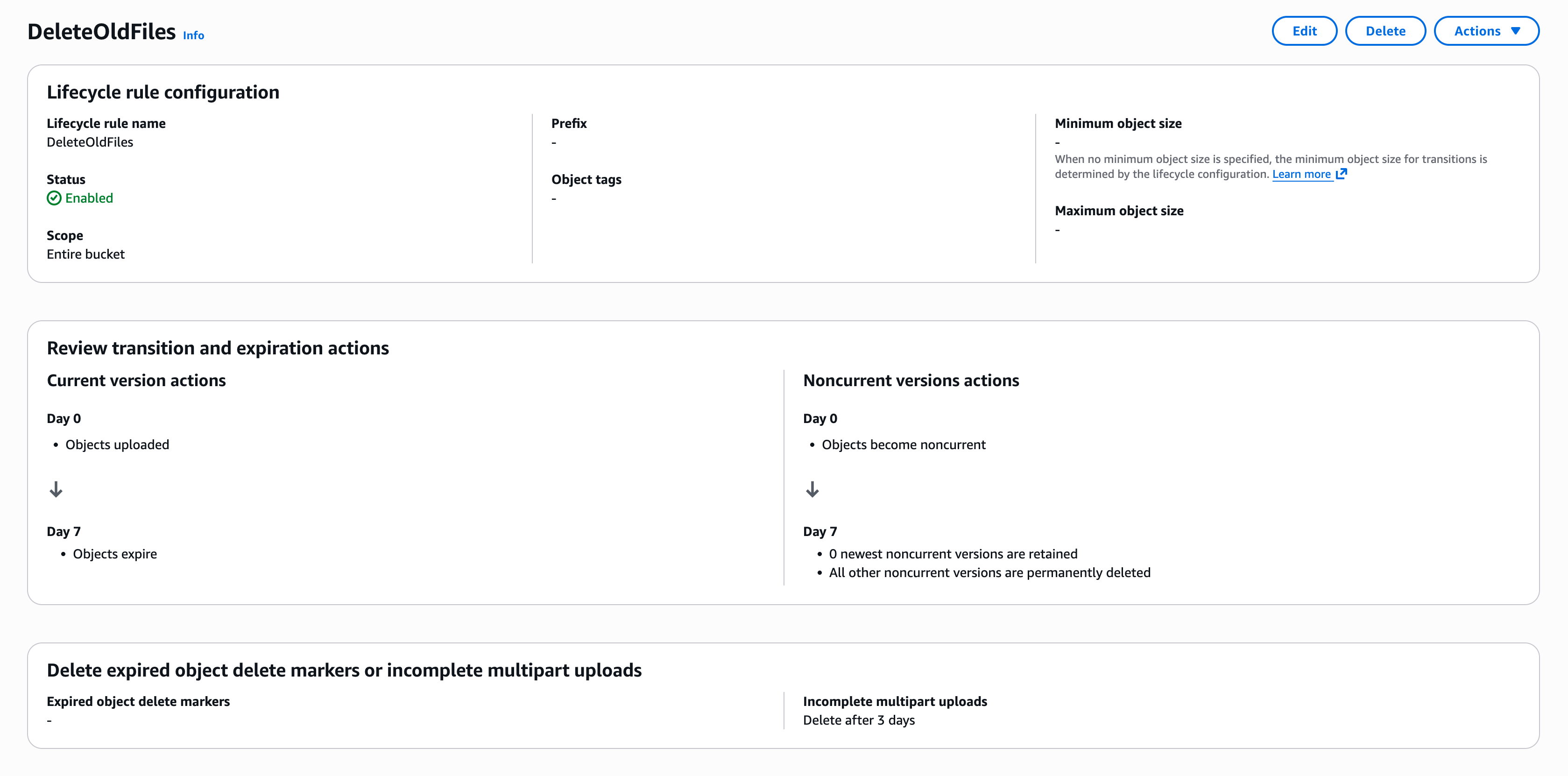
You should consider adding a lifecycle rule to your bucket in order to remove stale cache data and prevent your bucket from growing infinitely. Here’s a simple configuration that removes old objects after 7 days:
DigitalOcean Spaces
DigitalOcean Spaces is an S3-compatible object storage that this project also supports.
- Create a Space.
- Generate a new spaces access key.
- Fill in the
AWS_ACCESS_KEY_IDandAWS_SECRET_ACCESS_KEYenvironment variables based on the access key you created. - Set
AWS_REGIONtous-east-1- Explanation - Set
STORAGE_PATHto the name of the Space you created. - Set
S3_ENDPOINTto the endpoint of the Space you created. For example,https://nyc3.digitaloceanspaces.com. - Set
STORAGE_PROVIDERtos3. - Optionally, set
S3_MAX_SOCKETSto control the maximum number of concurrent connections to the Space.
Google Cloud Storage
Artifact publication and signatures
Artifacts are streamed directly into a GCS object. When signatures are enabled, the server writes the x-artifact-tag in the upload’s custom metadata (artifact-tag). The server also writes the legacy .tag object for older server versions, but it reads only the embedded tag. GCS publishes the body and metadata atomically, and the server waits for the SDK’s upload completion before returning success. Concurrent uploads can overwrite one another; each published generation contains one upload’s body and tag. Failures before GCS finalizes an upload, including the tested interrupted streams and streaming BODY_LIMIT failures, leave the prior object untouched. An error response does not prove that an upload was never published: finalization can succeed before its acknowledgement is lost, and SDK checksum validation or cleanup can fail after publication. Preserving the prior object after such post-publication failures is not guaranteed. No server-local locks or additional object copies are required.
GET reads the object’s metadata and streams that exact generation. If an overwrite removes the selected generation before it can be opened, GET returns a cache miss instead of combining a new body with an old tag. Object Versioning is not required; enabling it can keep the selected older generation readable. HEAD checks the same metadata without downloading the body. Storage failures other than not-found remain errors, not cache misses.
Existing unsigned objects remain readable when signatures are disabled. With signatures enabled, objects without an embedded tag are cache misses, even if a legacy .tag object exists: a sidecar cannot prove which body it belongs to. These entries are rebuilt by clients; do not migrate by copying sidecar tags onto existing objects. An unsigned overwrite does not retain the previous generation’s tag.
Because the server still writes the legacy .tag object, old and new server versions can run together, and a rollback is safe. Old instances read the sidecar, with the same race between body and tag as before this change. Signed GCS GET and HEAD requests are served by this server even when TURBO_CACHE_READ_URL is set, because an unversioned CDN redirect cannot preserve the selected body/tag pair. Unsigned CDN redirects are unchanged. Other storage providers retain their existing publication and sidecar behavior; this guarantee currently applies only to GCS.
See Google’s consistency guarantees and object generation documentation. Google recommends generation preconditions for successive metadata/data reads. The server preserves the generation as a literal string, including values above JavaScript’s safe integer range, using a per-file SDK request interceptor rather than the SDK’s numeric generation constructor option.
Bucket setup
- Create a bucket (or use an existing one).
- Create a new service account.
- Grant the role
Storage Object Adminto the service account on the bucket.# .env STORAGE_PROVIDER=google-cloud-storage STORAGE_PATH=<name-of-the-bucket>Using static Service Account credentials
- Click “Create Key” and save the JSON file.
- Add the
project_id,client_email, andprivate_keyfrom saved JSON file to.env(or wherever you manage your environment variables):# .env GCS_PROJECT_ID=<project_id> GCS_CLIENT_EMAIL=<client_email> GCS_PRIVATE_KEY=<private_key>Using Application Default Credentials (ADC)
- Do not set
GCS_*environment variables# .env GCS_PROJECT_ID= GCS_CLIENT_EMAIL= GCS_PRIVATE_KEY=
Azure Blob Storage
- Create a new Blob Storage.
- On “Security + networking” tab, copy one of
Connection stringon “Access keys” blade. - Set
ABS_CONNECTION_STRINGto the connection string.
Minio
- Create Access key
- Fill in the
AWS_ACCESS_KEY_IDandAWS_SECRET_ACCESS_KEYenvironment variables based on the access key you created. - Create bucket
- Set
STORAGE_PATHto the name of the bucket you created. - Set
AWS_REGION(can leave blankS3_REGION=for none). - Set
STORAGE_PROVIDERtominio. - Set
S3_ENDPOINTto Minio url (iehttp://127.0.0.1:9000) - Optionally, set
S3_MAX_SOCKETSto control the maximum number of concurrent connections to the Minio instance.